Developer blog
How to Translate a Video With AI: A Review-First Workflow
The short answer: you do not translate a video, you translate its script and then speak the script again. Decide what you need to ship, get a transcript, get a first translation, fix both while they sit side by side, decide who says which line and in what voice, approve, and only then generate audio. The machine part is fast and mostly automatic. What decides whether the result is usable is the review you do before anything is voiced. This guide covers that sequence for one video, then what changes when the one video turns out to be lesson three of forty.
Choose the output first: subtitles, translated audio, or a localized video
It is easy to skip this decision and start uploading. It determines how much work the rest of the process takes.
| Output | Choose it when | What you get | What it costs you |
|---|---|---|---|
| Subtitles only | The speaker is on camera, or your audience reads your language better than it hears it | A timed SRT or VTT per language | Cheapest, but viewers read while watching a demo |
| Translated audio track | Screen recordings, tutorials, anything where the eyes are busy | A dubbed audio file per language, plus the subtitles produced along the way | The real work: voices, timing, review |
| Localized video file | A platform or LMS will not take a separate track | A muxed video per language | Big files, and the picture still shows the original mouth |
A practical bias: audio and subtitles are the durable artifacts, and video is a packaging step you can repeat later. Produce the audio and the subtitles first, then decide about video files.
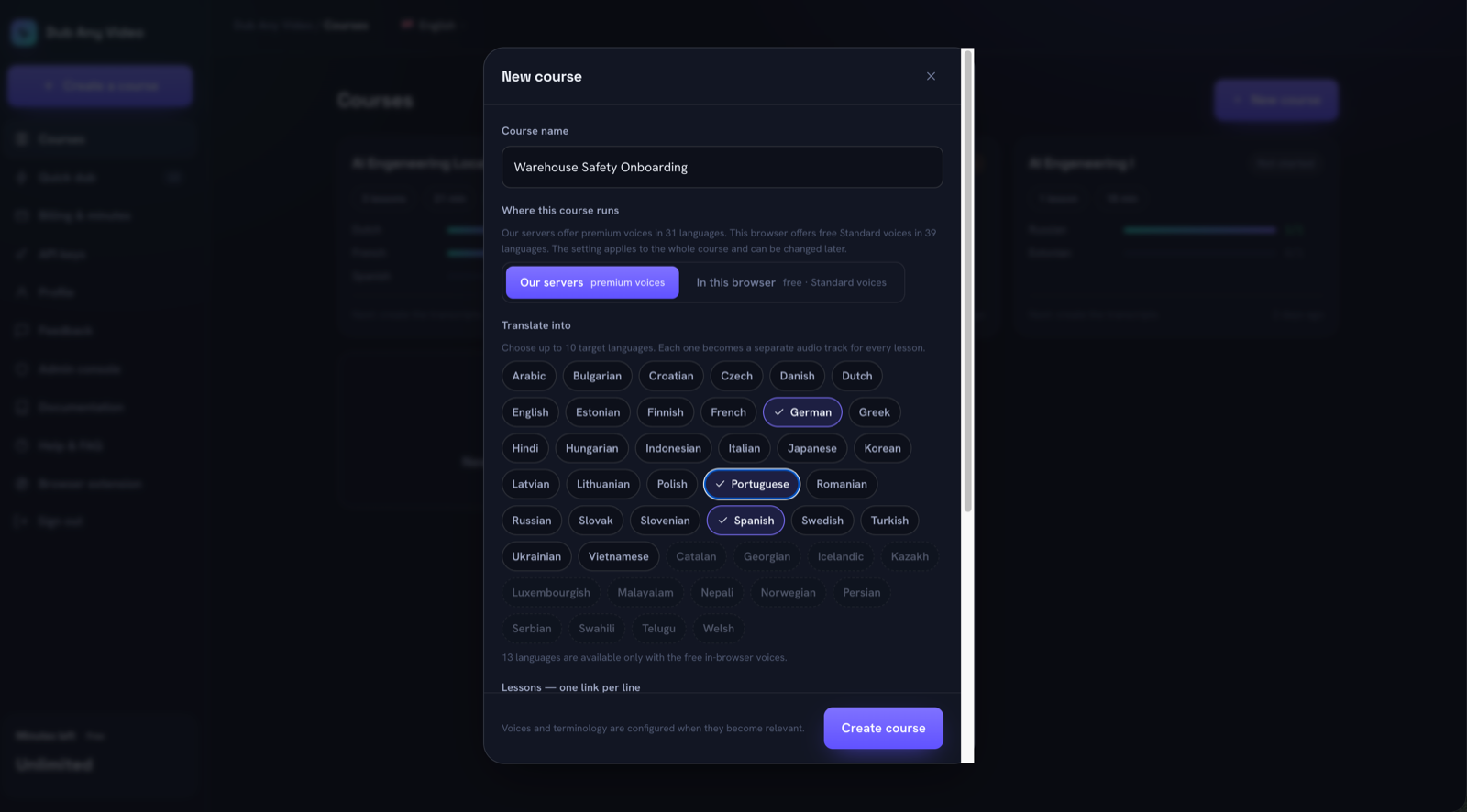 Languages are a course-level decision. Where the course runs decides which list you get: our servers speak 31 languages, in-browser voices cover 39, and 26 are common ground.
One boundary belongs at the top, before you plan around something that will not happen. AI dubbing replaces the voice, not the picture. Lips will not match the new language, and on-screen text stays in the original language unless you re-edit the video. If your source is a talking head in close-up for twelve minutes, subtitles may be the better product.
Prepare the source
Confirm you are allowed to translate it: your own recording, a client's material with a written go-ahead, or something licensed. People skip this step more than any other, and it is the only one with legal consequences.
Check the audio before you look at the video. Speech recognition fails in predictable ways: a music bed under the narration, two people talking over each other, a laptop mic in a room with hard walls. Ten minutes fixing the source beats an hour fixing its transcript.
Then hand over the media. Dub Any Video takes a direct video link, an HLS playlist, or the file itself uploaded from the dialog, up to 500 MB per file and 60 minutes per video on the cloud side. Uploaded files are kept so the pipeline can fetch them, then deleted: after one day on the free plan, after seven days on a paid plan. YouTube links are not a supported source. In the free in-browser mode the file stays on your own machine and nothing is uploaded at all.
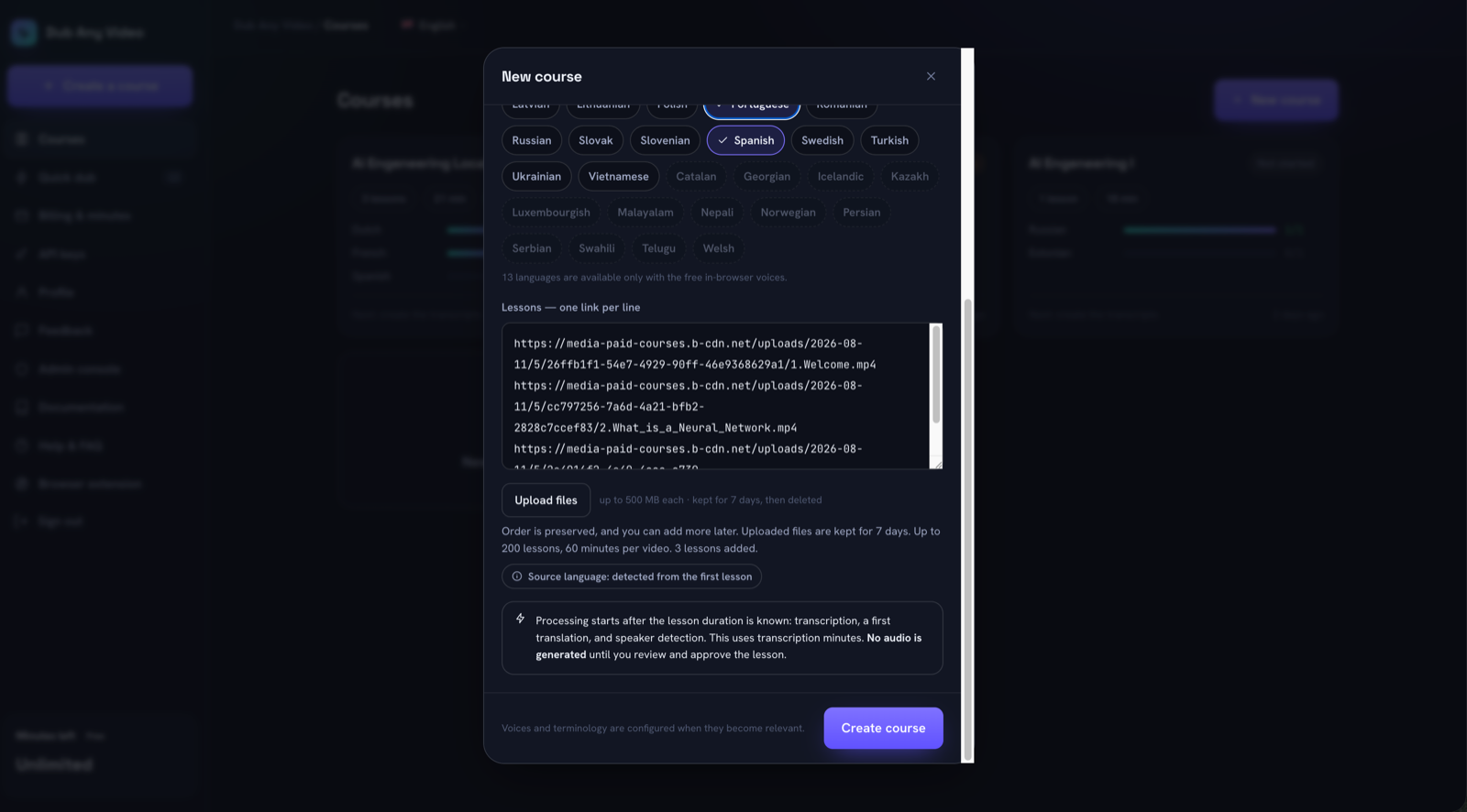 One link per line, or upload the files. The source language is detected from the first lesson, and the notice spells out what will happen next and what it costs.
Let the machine make the first pass
Most guides describe transcription and translation as two chores you do by hand. On our servers they are neither, and they do not happen separately. Once a lesson's duration is known, three things start on their own: transcription, a first translation, and speaker detection. That spends transcription minutes. Nothing is voiced.
You can close the tab. The work continues and an email arrives when a lesson is ready.
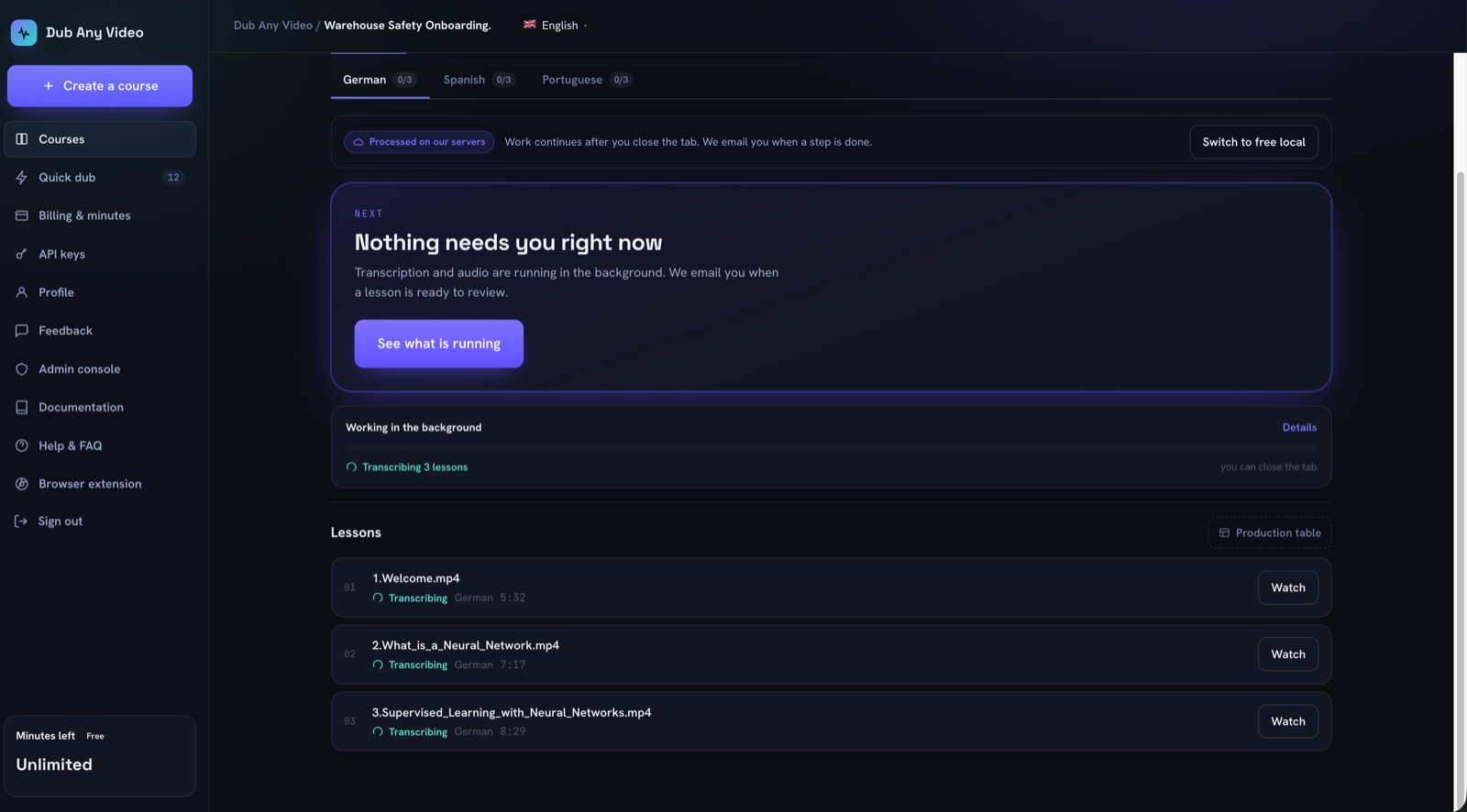 Nothing needs you while the first pass runs.
The free in-browser mode works differently, which matters if you are choosing between the two. There you drive the steps yourself: transcribe with your own provider key from OpenAI, Groq or Deepinfra, or import subtitles you already have, then press Translate for each language, then generate. One lesson at a time, in an open tab, at no cost in minutes.
Once the first pass lands, the machine has done what it can do unsupervised.
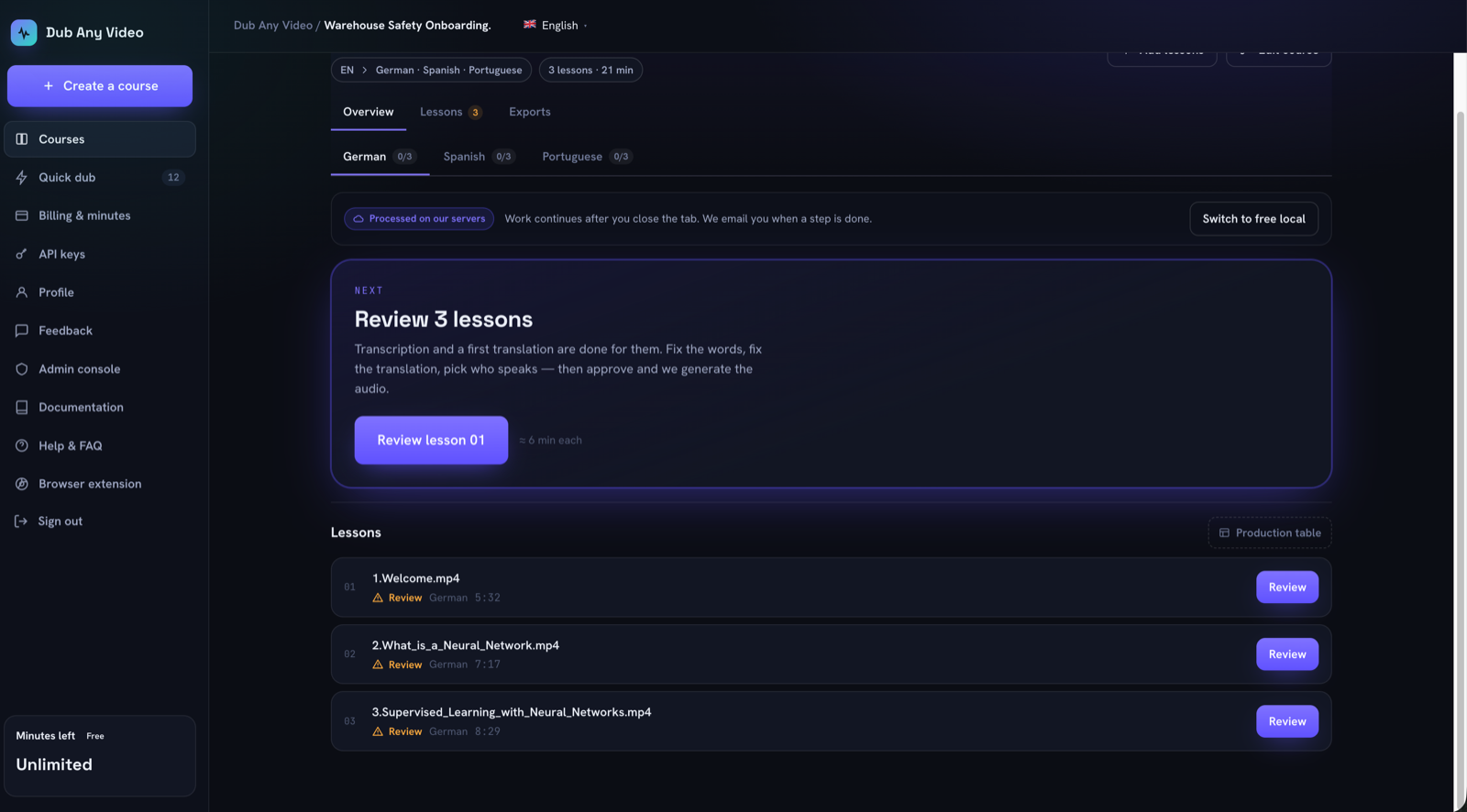 The transcript and a first translation are done. What is left is the part a machine should not do alone.
Correct the transcript and the translation on one screen
Open a lesson and both columns are there: what was said on the left, what will be spoken on the right. Reviewing them together is the point. A translation error and the recognition error that caused it are usually the same defect, and you can only see that when the two sit next to each other.
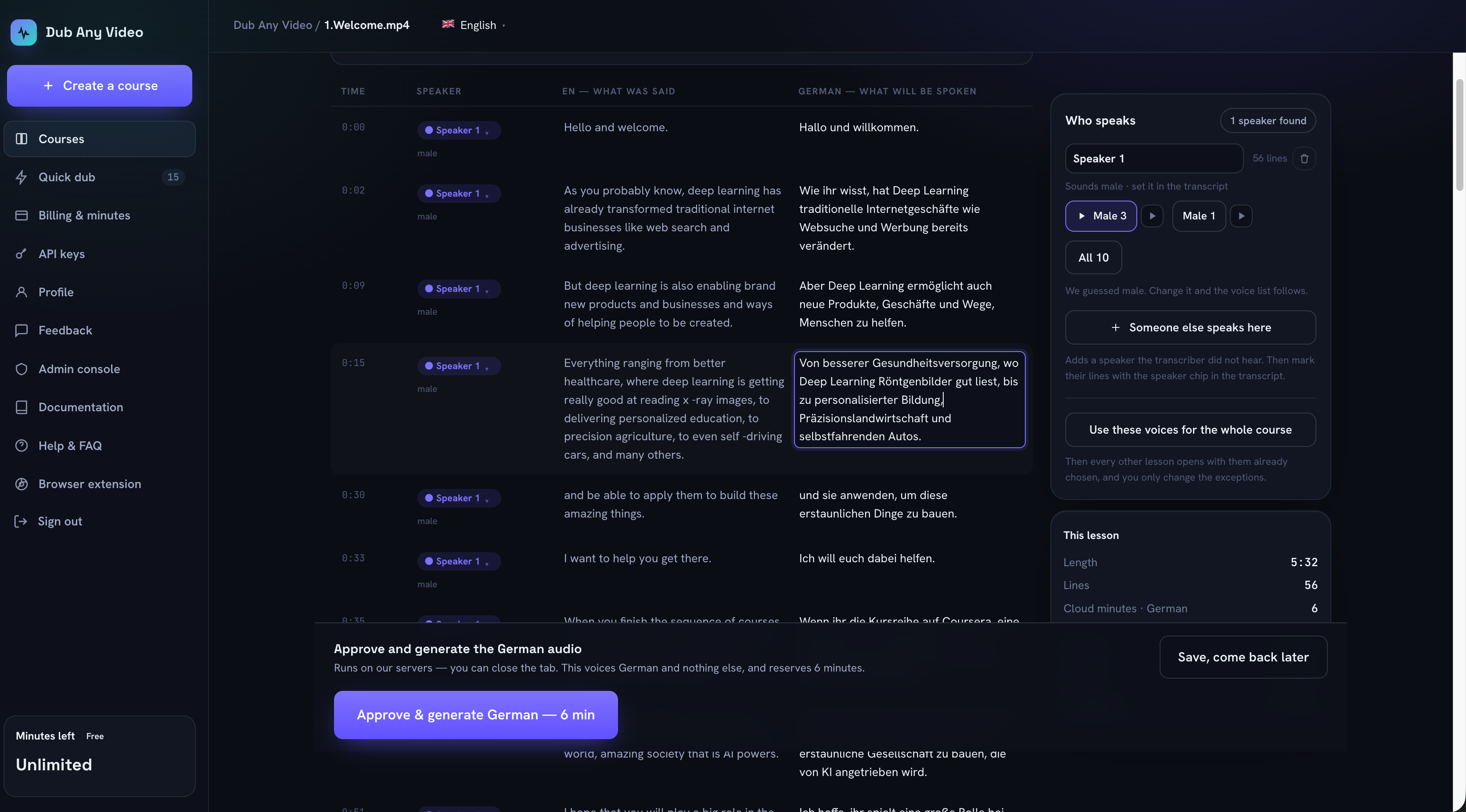 Every line is editable on both sides, with the speaker chip and the timing next to it.
What to fix, roughly in order of how much damage it does:
- proper nouns: people, products, companies, place names
- numbers, prices, dates and units
- terms of art in your field
- UI strings, because translating "click Settings, then Billing" makes an instruction impossible to follow when the software is in English
- anything read off the screen, which has to match the pixels
- length, since German and Spanish run longer than English and a four-second line may now need six
One detail about where the words go. The pipeline translates one language while it transcribes, the course's first target. When you open a language that arrived empty, the draft is made in your browser and the lines travel to Google's public translation endpoint. The video does not. The screen says so on the button rather than in a footnote.
Decide a word once for the whole course
When you fix the same product name twice, stop fixing it and save it as a term instead.
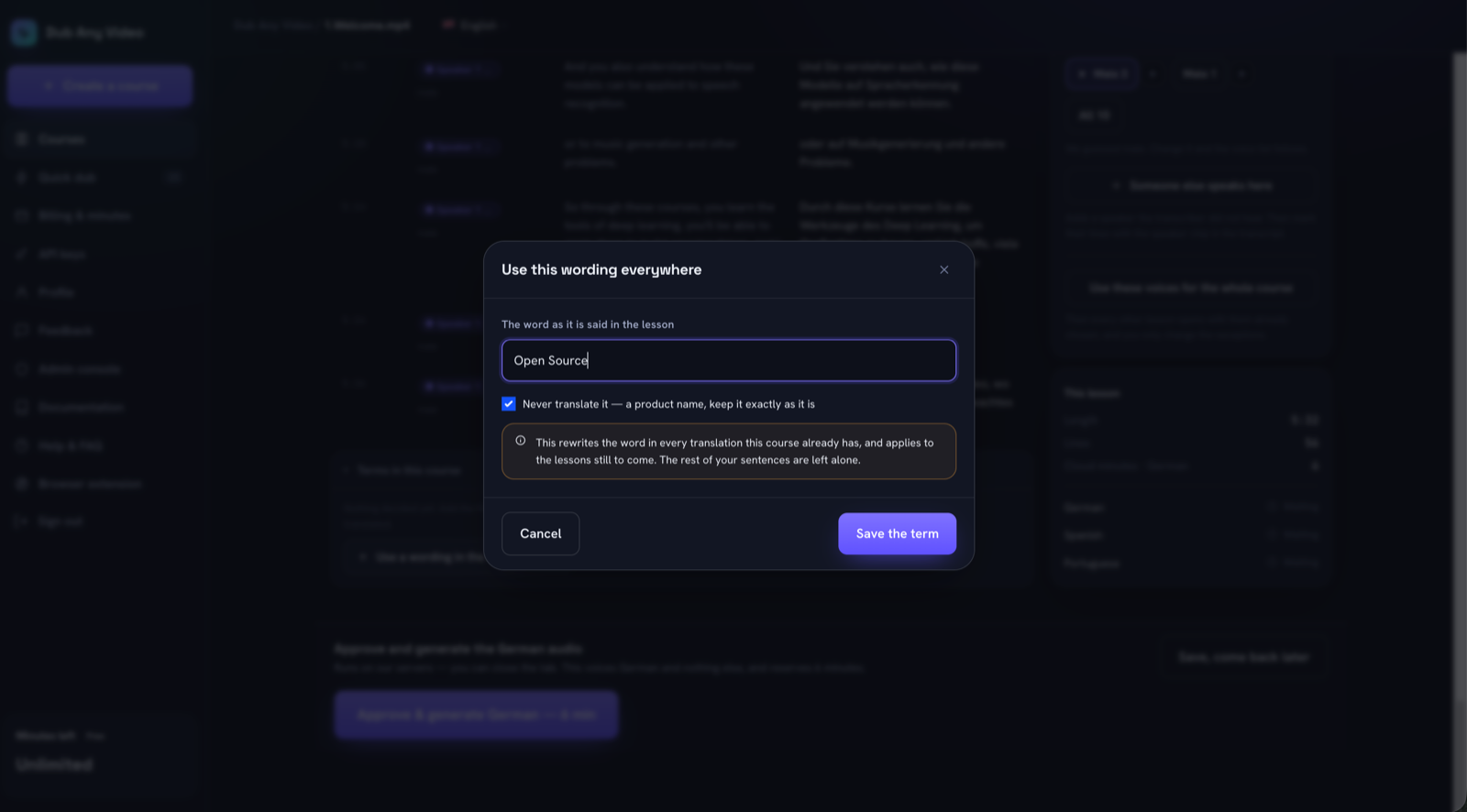 Save the word once and it is applied everywhere, including lessons you have not made yet.
Saving a term rewrites it in the translations the course already has and applies it to the lessons still to come. It replaces the source word left standing in the text and the previous rendering when you change your mind later, and nothing else. It does not guess at other forms, because rewriting text you cannot prove belongs to the term is how a sentence you already approved quietly breaks.
Confirm who speaks and in what voice
Speaker separation is a suggestion. So is the gender the transcriber inferred. The panel says as much: it reports what it found, and it says it guessed.
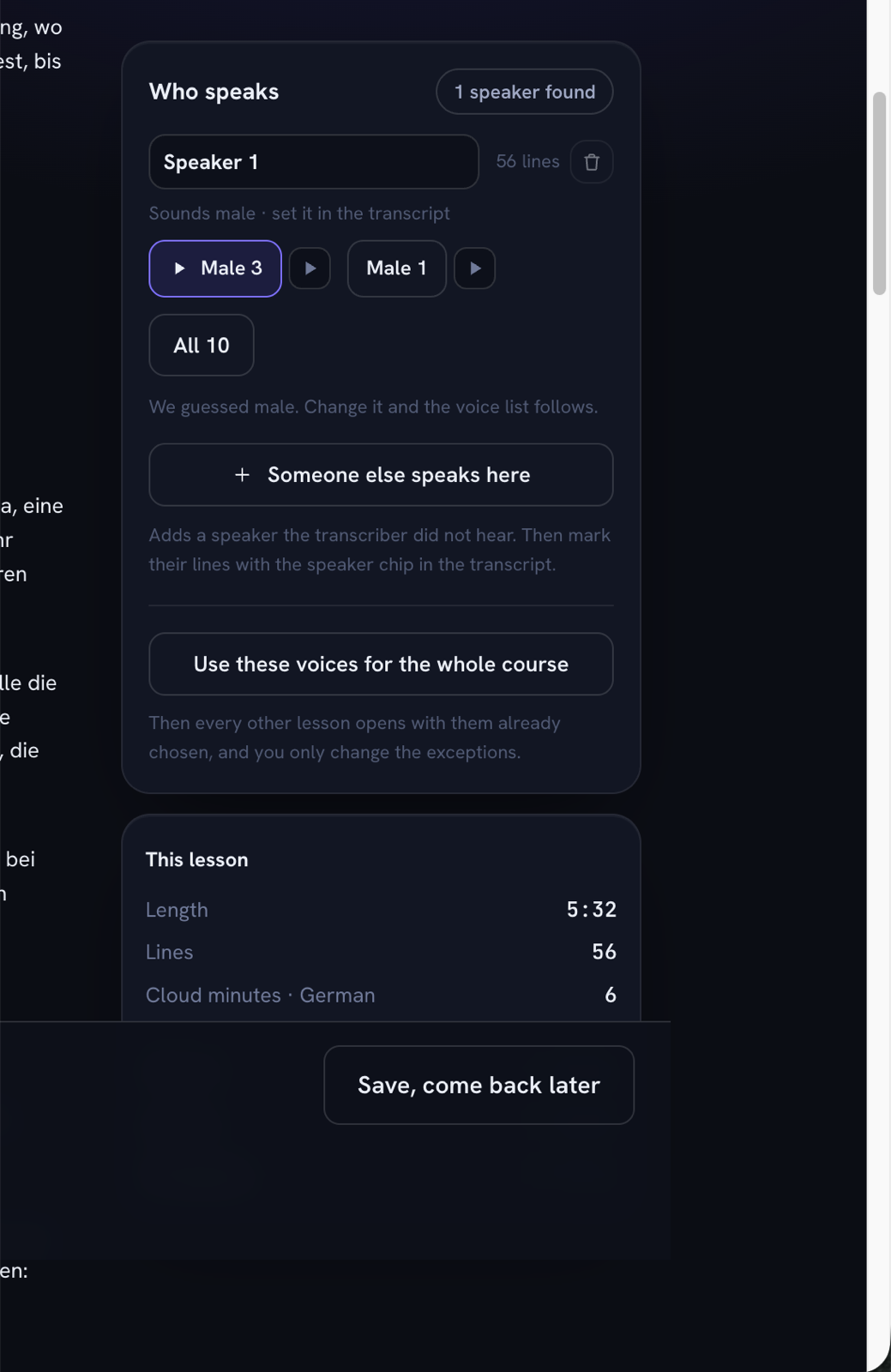 A suggested speaker, a guessed gender, a shortlist of voices, and one button that applies the choice to every remaining lesson.
Treat it as a first draft: merge two speakers the pipeline split apart, add one it missed entirely and move their lines onto them, override a gender guess instead of arguing with it. Then pick voices. Our servers offer ten Premium voices, five male and five female. The browser offers free Standard voices with per-language options. Neither mode clones voices, which is deliberate: nothing has to be trained before you start, and nobody's voice gets copied without their say-so.
Reuse the choice across the course rather than deciding it again per lesson. The same instructor should not sound like a different person in lesson 12.
Approve, generate and export
Approve is the gate. It is per language, it says what it will spend before you press it, and it is the first moment anything is voiced.
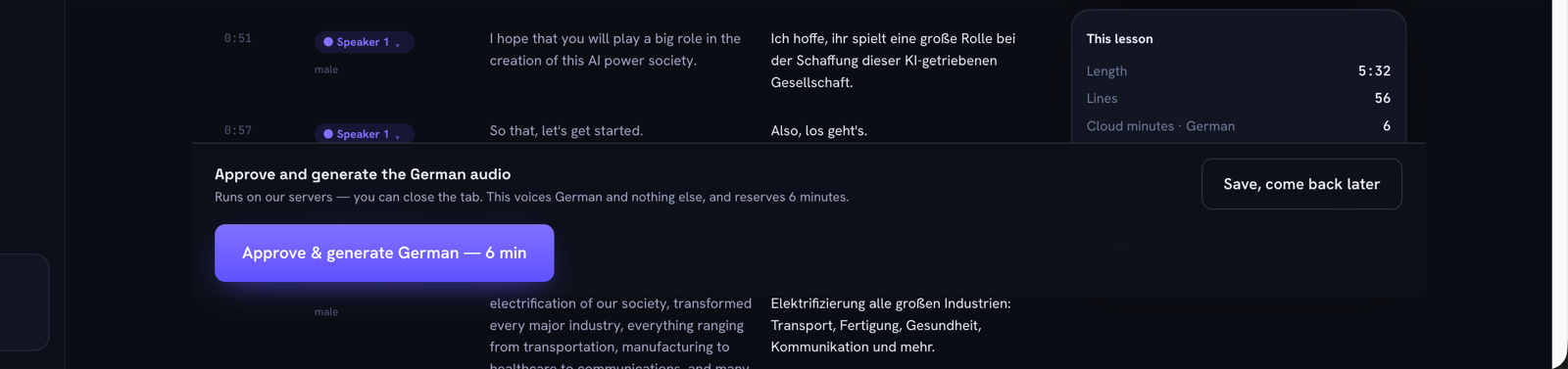 One lesson, one language, the minute count on the button. Then you can close the tab again.
If a tool generates audio the moment the transcript exists, you are proofreading a finished product instead of a script, and every correction costs another generation.
When the audio is done, the exports tab has the files: one archive per language with the lessons numbered in course order, loose files if you prefer, per-lesson MP3 with the translated and source subtitles, and a text bundle for a human translator or your LMS.
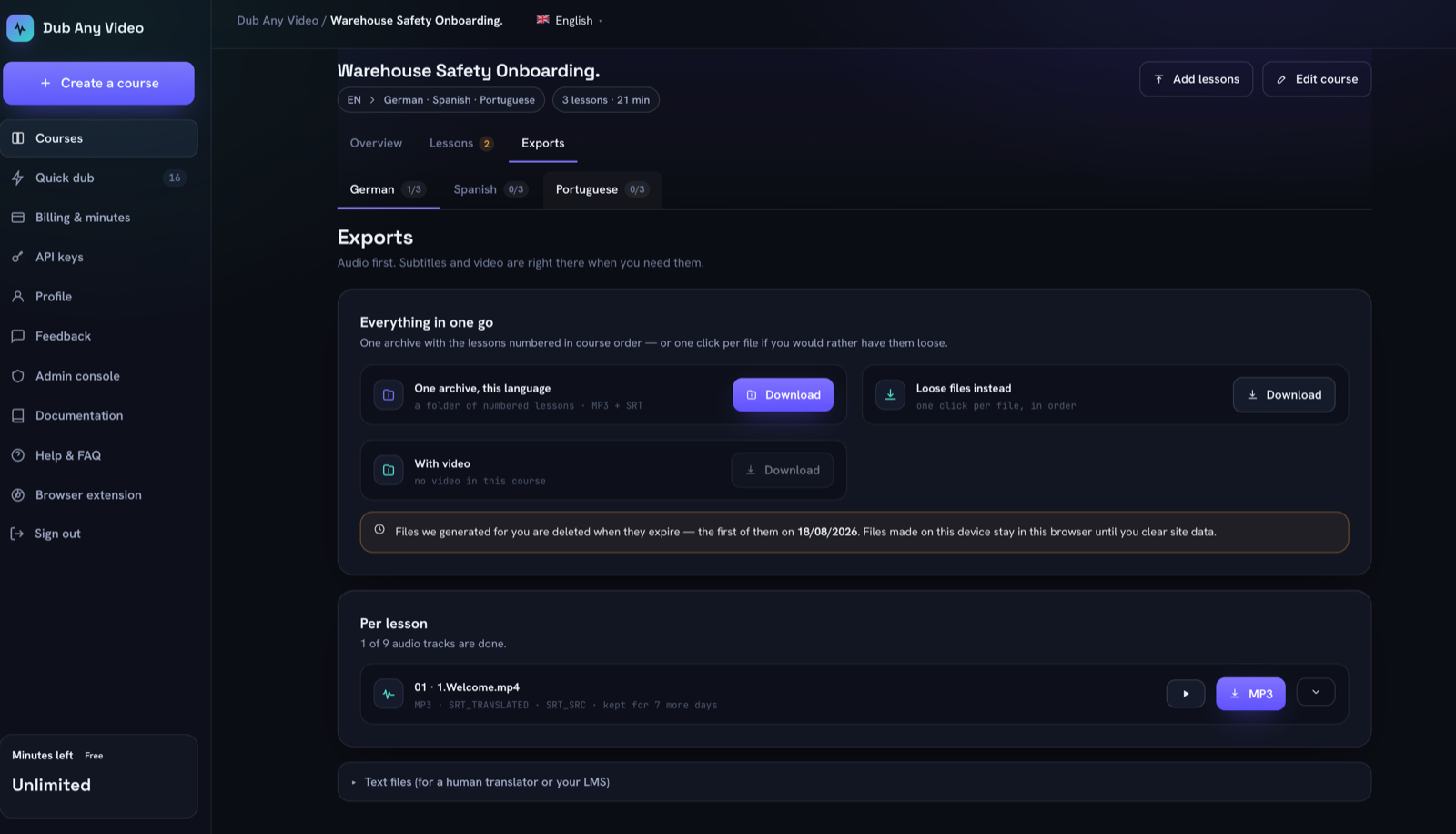 Files we generate expire, and the screen names the date instead of making a vague retention promise.
How to translate a video, step by step
- Decide the output (subtitles, audio, or a video file) and the target languages.
- Add the source: a direct link, an HLS playlist, or an upload. Confirm the rights first and listen to the audio once.
- Let the first pass run: transcription, a first translation and the speaker split. In the browser mode, run those steps yourself.
- Read both columns and fix names, numbers, terms, UI strings and timings.
- Save the recurring decisions as course terms.
- Confirm the speakers and assign voices, then reuse them across the course.
- Approve. Nothing is voiced before this, and it commits the minutes.
- Listen to the result, at minimum the first minute and one dense technical passage.
- Export the audio, the subtitles and the transcript, and archive what you intend to keep.
What to say when you publish a dubbed video
Replacing the voice makes the file altered media. That raises two separate questions: what you tell the platform, and what the file says about itself.
The platform side is policy, and it is narrower than people assume. YouTube asks for disclosure when synthetic content makes a real person appear to say or do something they did not, alters footage of a real event or place, or generates a realistic scene that never happened. Its exemption list names caption creation and cloning your own voice for voice-overs or dubs. Translation is not called out either way, so read the current policy before you publish rather than trusting a summary, including this one. (Checked 2026-08-11.)
The file side is provenance, and it matters because it can label your video without asking you. C2PA is an open standard for recording where a file came from and what was done to it, backed by a steering committee that includes Adobe, Google, Meta, Microsoft, OpenAI, the BBC, Sony and TikTok. Its output, Content Credentials, is described by the coalition as "a nutrition label for digital content", and each recorded action can state that an AI system performed it. TikTok has read those credentials to auto-label uploads since May 2024, and YouTube says it may apply an AI label automatically to content carrying C2PA metadata, a label the creator cannot then remove.
Files exported from Dub Any Video carry no Content Credentials today, so nothing about them triggers an automatic label. Disclosure is a decision you make at upload, and for a course it is worth making once and applying to every lesson.
What changes when it is a whole course
Forty videos is a different job from one video, and it fails in ways one file never does.
Terminology drifts. Lesson 3 says one thing and lesson 19 says another, because each file was translated on its own. Course terms fix that by applying to new translations as they arrive, not only to the lesson you happen to have open.
Voices change, unless the choice belongs to the course with per-lesson exceptions kept visible.
Approvals become invisible. With a folder of files, nobody can tell which lessons were reviewed. With a lesson state on screen, they can.
Updates overwrite context. You edit the script of lesson 8 after it was already dubbed, and the old audio still plays. Marking that language stale keeps the file available while making it obvious it no longer matches the script, which beats both deleting it and pretending it is current. A single failed lesson also has to be retryable on its own, without starting the course over.
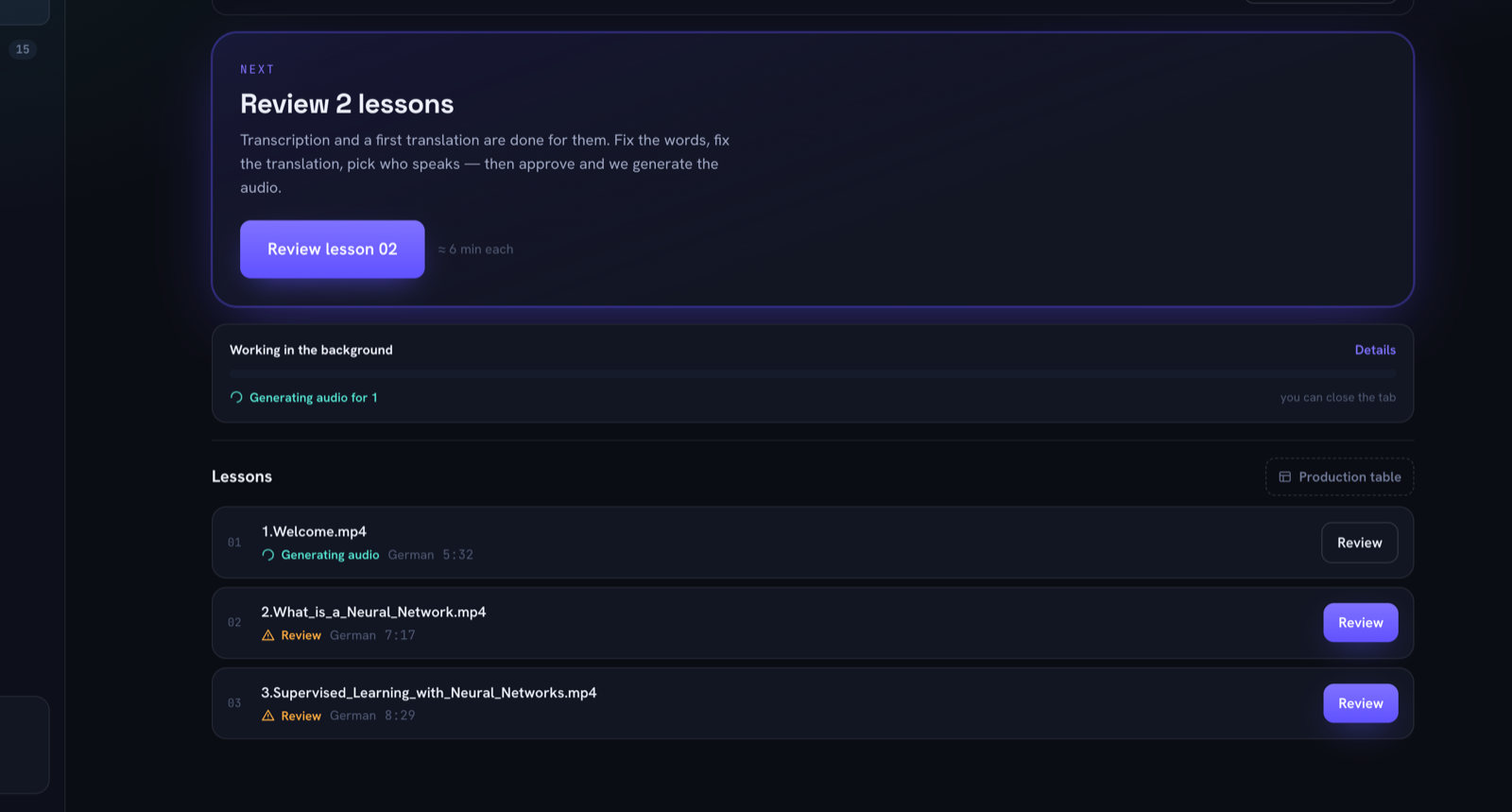 Lessons move independently. One is being voiced while the next two wait for a person.
A course holds up to 200 lessons and up to 10 target languages, with per-language state on each lesson and language pair, so you can see which of the 40 × 3 combinations are waiting, running, ready or stale.
Common mistakes
- Approving before reading. The first pass is a draft, and it is confident either way.
- Choosing video output by default, when most training cases need an audio track and a subtitle file.
- Skipping the glossary "just for this one". The one becomes twelve, and only your learners can see the inconsistency.
- Treating speaker detection as fact. Unreviewed, it gives you two voices for one person or one voice for two.
- Publishing without listening. Numbers, acronyms and code identifiers are where synthesis stumbles, and they read fine on the page.
- Editing after generation and not regenerating. A corrected script with the old audio attached is worse than an uncorrected one, because now you think it is fixed.
- Picking a target language your chosen engine cannot speak. Check before you build the plan around it.
FAQ
How can I translate my video for free?
Run it in the browser. That mode synthesizes the voice locally, works on a file from your own machine, and costs no minutes. The trade-offs are real: one lesson at a time, the tab stays open, no server-side speaker separation, and you start transcription and translation yourself. See free, private video dubbing for what stays on your device.
Can I translate a YouTube video?
Not by pasting a YouTube link, which is not a supported source. Use a direct media link, an HLS playlist, an upload, or a local file in browser mode, and make sure you have the right to translate the content.
Do I need subtitles or dubbing?
Subtitles when the picture carries the meaning and the viewer can read while watching. Dubbing when their eyes are on a demo, a screen recording, or their own work. Many courses ship both, and the dubbing workflow produces the subtitles anyway.
Is AI video translation accurate?
It is a good draft. Names, numbers, units, UI strings and field-specific terms are the predictable failure points, which is why the approval gate exists. And no, it will not match lip movement or clone your voice: the voices are a fixed professional set.
Do I have to label a dubbed video as AI-generated?
It depends on the platform and on what you changed. YouTube's rules target synthetic content that could be mistaken for real footage of a real person or event, and its exemptions name captions and cloning your own voice for dubs. Separately, TikTok and YouTube both read C2PA Content Credentials and can label a file automatically. Our exports carry none, so the decision stays with you.
How many languages can I translate into?
Thirty-one on our servers, thirty-nine with in-browser voices, twenty-six of them in common. One course can target up to ten at once.
Start with one lesson
Everything else in how to translate a video is recoverable. Voices can be swapped, formats re-exported, a language added next month. What does not come back cheaply is a mistranslated product name sitting in forty lessons, so read the first pass before anything is spoken and keep the approval step even when the machine output looks fine.
For a single file, Quick dub is the shortest path from a link to a dubbed track. For a course or a training library you will keep updating, create a course, run one representative lesson end to end, and decide about the other thirty-nine once you have heard how the first one sounds.