Developer blog
Can Loom Translate a Video? A Practical Workflow for Training Teams
Partly, and the difference decides your whole workflow. Checked against Loom's own documentation on 11 August 2026: Loom transcribes in 50 or more languages and lets a viewer translate the captions inside the player. It does not hand you a translated subtitle file you can ship elsewhere, and it does not produce a dubbed audio track in another language.
What Loom supports today
Everything in this section comes from Atlassian's Loom documentation, read on 11 August 2026. Products change, so treat the date as part of the claim and open the pages yourself before you plan around them.
The broadest feature is transcription. Transcripts are available on all Loom plans, covering 50 or more languages, and captions come from that transcript.
Translation happens at the viewing end. The same page says viewers can translate captions into the language of their choice, and that those translations are auto-generated by AI from the video's transcript. What the viewer gets lives in the player, for that viewer, in that session.
There is a caption file to download, behind a plan and a role. You can pull an SRT of your captions, but only as creators and admins on Business and Business + AI plans, or as a member or admin on Enterprise. The file carries the original-language captions.
The video itself downloads as MP4, and the rules are worth reading before you promise anyone a deadline. Per the download documentation, Business and Business + AI allow admins and creators, Enterprise allows admins and members, Education allows admins only, and the Starter Free plan cannot download at all. Creator Lite and Viewer roles have no download permission either. Trims survive into the file, while CTAs, filler word and silence removal, chapters and closed captions do not.
Neither page mentions dubbing, a translated audio track, or an exportable translated caption file. That gap is why the answer at the top is partly rather than yes.
Captions, translated captions, and dubbed audio are three different things
Most of the confusion here is vocabulary. People say "translate the video" and mean any of the rows below.
| What you want | What it really is | Loom, as documented today |
|---|---|---|
| Text of what was said | transcript in the spoken language | Yes, all plans, 50+ languages |
| Subtitles in the original language | timed text on the player | Yes |
| A viewer reading along in their own language | caption translation inside the player | Yes, chosen by the viewer |
| A subtitle file in another language, to attach in your LMS | an exported SRT or VTT | No, the SRT download is the original language |
| A new spoken track in another language | dubbing | No |
| The same narrator and vocabulary across twenty recordings | decisions held across files | Outside what Loom sets out to do |
If your need stops at row three, you are done. If it is row four or five, you need a second tool. The steps below are how to do that on a recording you are allowed to use.
A workflow for a recording you own
1. Check the rights and your role first
You need the right to redistribute the recording in another language, and a Loom role that can download it. If someone else recorded it, ask them. Being able to watch a video is not permission to republish it.
2. Download the MP4
From your Library, using the download option above the video. Remember what the documentation says gets dropped: captions are not baked into the file, so the burned-in subtitles you see in the player will not travel with it. That is fine here, because the next tool builds its own transcript from the audio.
3. Decide where the file gets processed
In our workspace, browser mode is free and the file never leaves your machine, which suits internal recordings that talk about unreleased products, and it has no length limit. Cloud mode runs on our servers, is capped at 60 minutes per video, and takes either a direct link or an upload of up to 500 MB; uploaded source files are deleted after one day on the free plan and after seven days on a paid plan. Some target languages are available only with the free in-browser voices, and the language picker says so as you choose them.
4. Create the course and add the recordings
Order is preserved, and you can add more later. A course holds up to 200 lessons and 10 target languages.
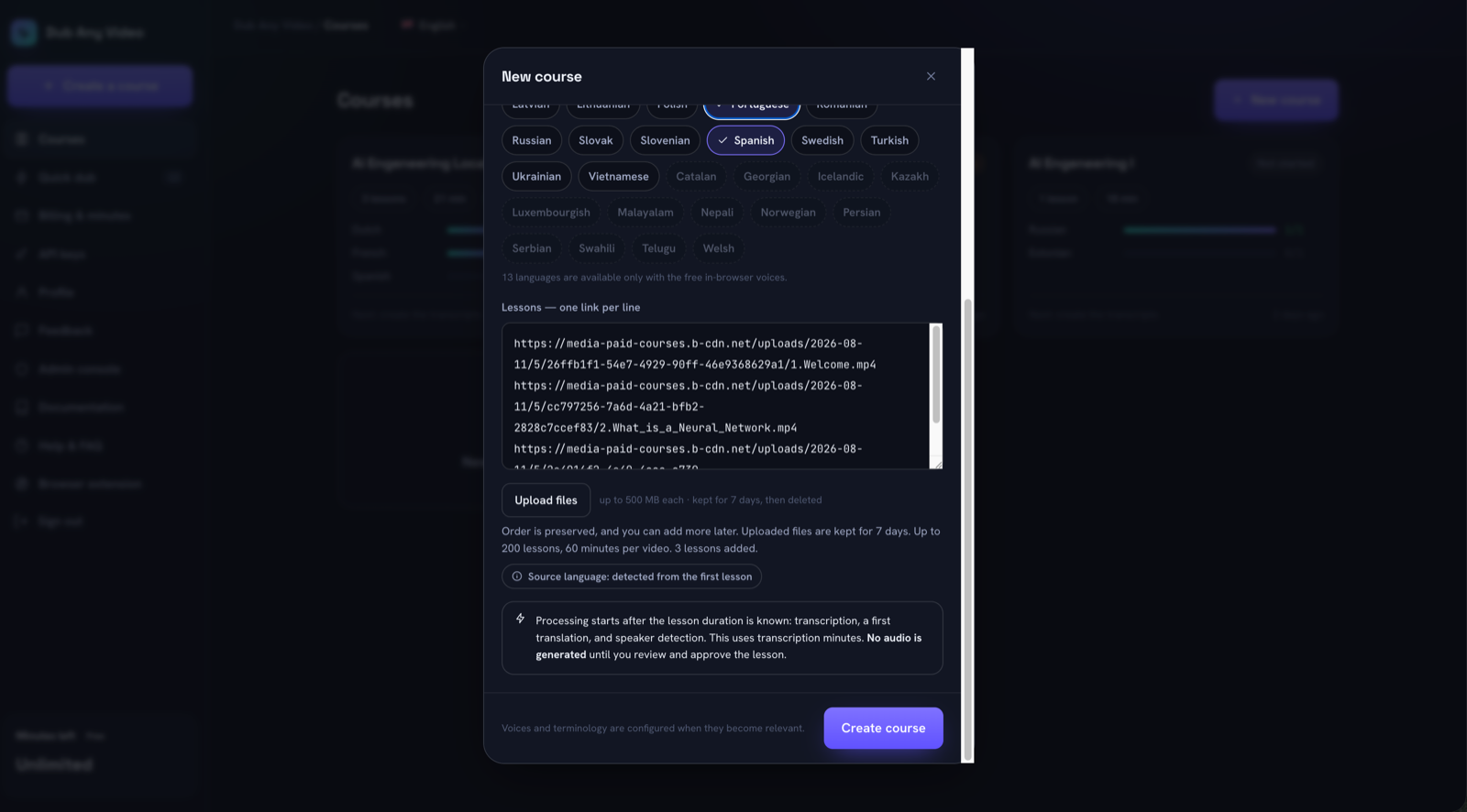 One link per line, or upload the files. A course runs on our servers or in your browser, and the same lesson list works either way.
5. Fix the transcript before anything is translated
Speech recognition mishears product names, internal acronyms and figures, and every one of those errors is copied into every language you generate. This is the cheapest minute you will spend.
6. Fix the translation and pin your terminology
Correct the lines that matter, then record the words that repeat across recordings so lesson 12 says what lesson 1 said.
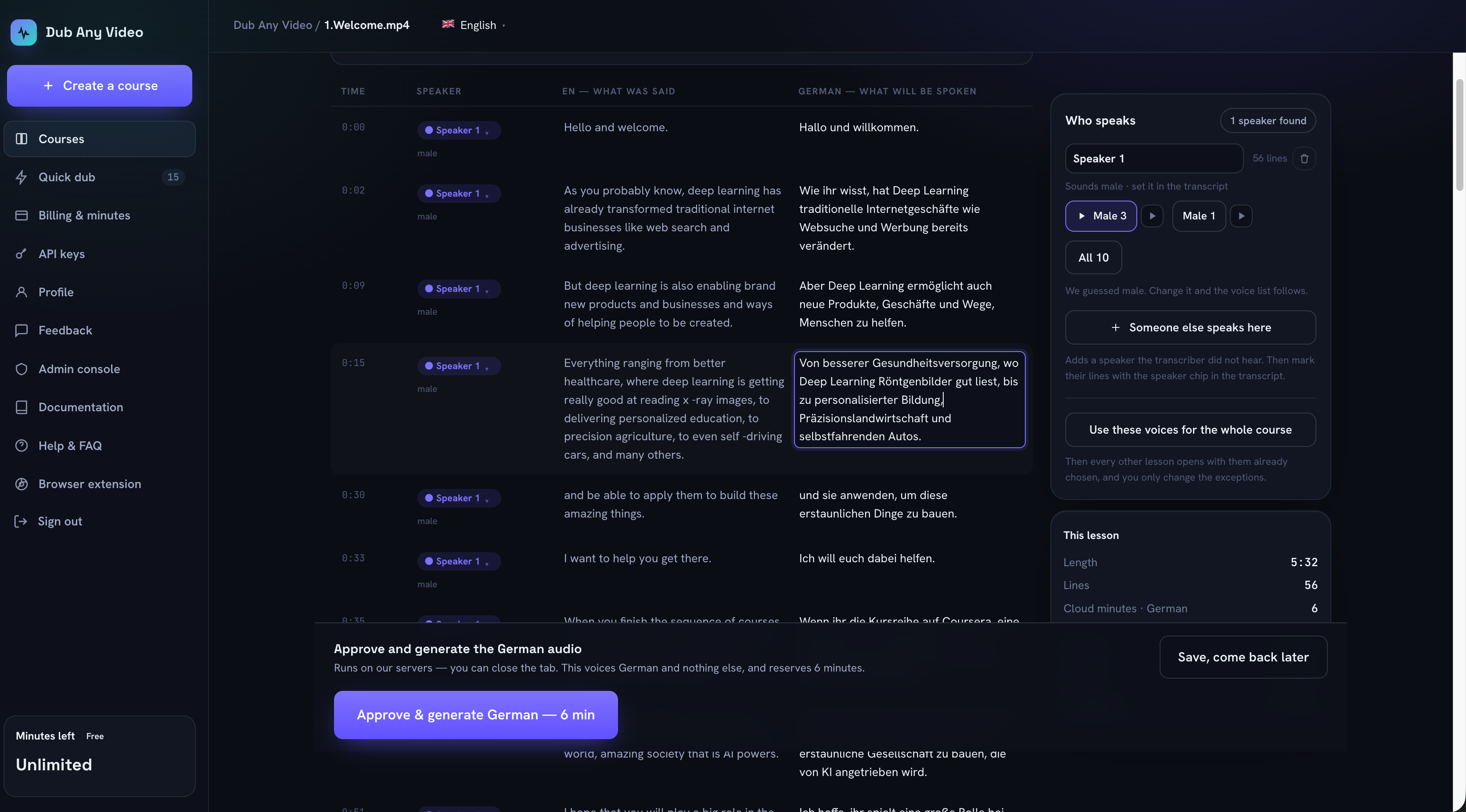 Transcript and translation side by side. Nothing is voiced until you approve the lesson.
7. Approve, then export
Approval is what triggers generation, so nothing gets spoken in a language you have not read. What comes out is audio per language plus subtitle files, which is exactly what row four and row five of the table were asking for.
What not to do
Do not run someone else's Loom through any translation tool. A share link that opens for you records an access decision rather than a license, and internal training recordings are usually the most sensitive video a company owns.
Do not expect a share link to work as a media source. A Loom URL is a page, not a video file. Our source validator takes a direct media link or an HLS playlist, and it rejects YouTube links outright with a single message everywhere they can be typed. Download the MP4 and use the file.
Do not wait for an integration. We have no connection to Loom, no API pairing and no import button, and this article is not a soft announcement of one. The workflow above is a download followed by an upload, and nothing cleverer than that.
When this stops being one video and becomes a course
One recording is a task you finish in an afternoon. Fifteen onboarding recordings that get re-recorded whenever the product changes is a different problem: the same product names have to be translated the same way every time, the narrator should stay the same person, and you need to know which localized files no longer match a recording you edited last week. That is when a folder of MP4s stops working and a structure built around lessons and languages starts paying for itself. The buyer's checklist is a way to test any tool against that, ours included.
FAQ
Can Loom dub my video into another language?
Not according to its documentation as of 11 August 2026. Loom's translation feature covers captions for the viewer, and the docs mention no audio track in another language.
Can I export translated subtitles from Loom?
No. The SRT download exists on Business, Business + AI and Enterprise plans with the right role, and it carries the original-language captions. Viewer translation is not exported.
Does Dub Any Video connect to Loom?
No. There is no integration. You download your recording as MP4 and add it as a lesson.
What if my recording is longer than an hour?
Cloud processing is capped at 60 minutes per video. Browser mode has no length limit because it runs on your device, so long recordings go there or get split.
Do I have to tell viewers the audio is synthetic?
Often yes. In two large markets the rules became operative on 2 August 2026, and we covered what they attach to in the buyer's checklist. Disclosing anyway costs nothing.
Start with one recording
Take the recording your new hires watch first, put it through the seven steps above, and have someone who speaks the target language watch the result end to end. One afternoon of that will tell you more than any comparison table. The full walkthrough covers the same path in more detail, and you can create a course and localize that first recording today.